What are Connections?
Connections is your central directory of everyone and everything you interact with. When you create a capture — whether it's meeting notes, a voice memo, or a forwarded email — rivo automatically identifies the people, companies, projects, and properties mentioned and adds them to your Connections.
There are five types of connections:
People
Clients, contractors, colleagues, vendors — anyone you interact with.
Companies
Organizations, firms, agencies, and businesses you work with.
Projects
Active engagements, jobs, campaigns, or initiatives you're tracking.
Properties
Physical locations — job sites, offices, rental properties, warehouses.
Things & Orders
Equipment, materials, purchase orders — physical items you need to track.
Connections are created automatically. You rarely need to add them manually. When you capture notes from a meeting with "Jennifer at Westbrook Industries about the website redesign," rivo creates entries for Jennifer (person), Westbrook Industries (company), and the website redesign (project) — and links them together.
Browsing & filtering
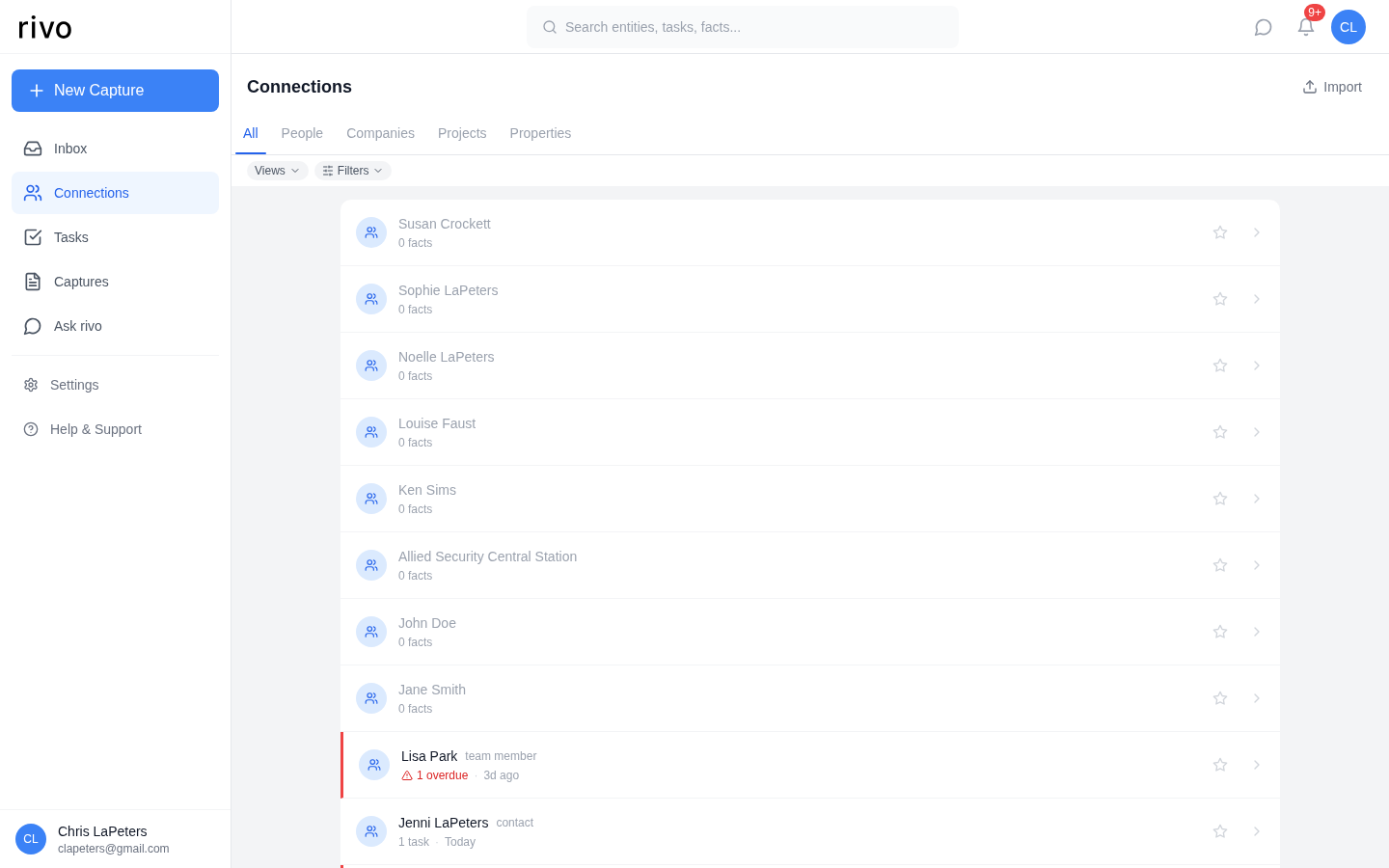
The Connections page shows all your entities in a single list. Use the type tabs at the top to filter by category, or use Views and Filters for more precise control.
 1
2
3
4
1
2
3
4
- 1 Type tabs — Quickly filter by People, Companies, Projects, or Properties. "All" shows everything.
- 2 Views & Filters — Save custom filtered lists (e.g., "Active Clients" or "My Vendors"). Filters let you narrow by subtype, archive status, and more.
- 3 Favorite star — Star important connections so they sort to the top and are easy to find.
- 4 Status indicators — Overdue tasks, recent activity, and subtype labels appear inline so you can spot what needs attention.
Pro tip: Use the search bar at the top of the page to jump straight to any connection by name. Search works across all entity types and also finds tasks and facts.
The entity detail page
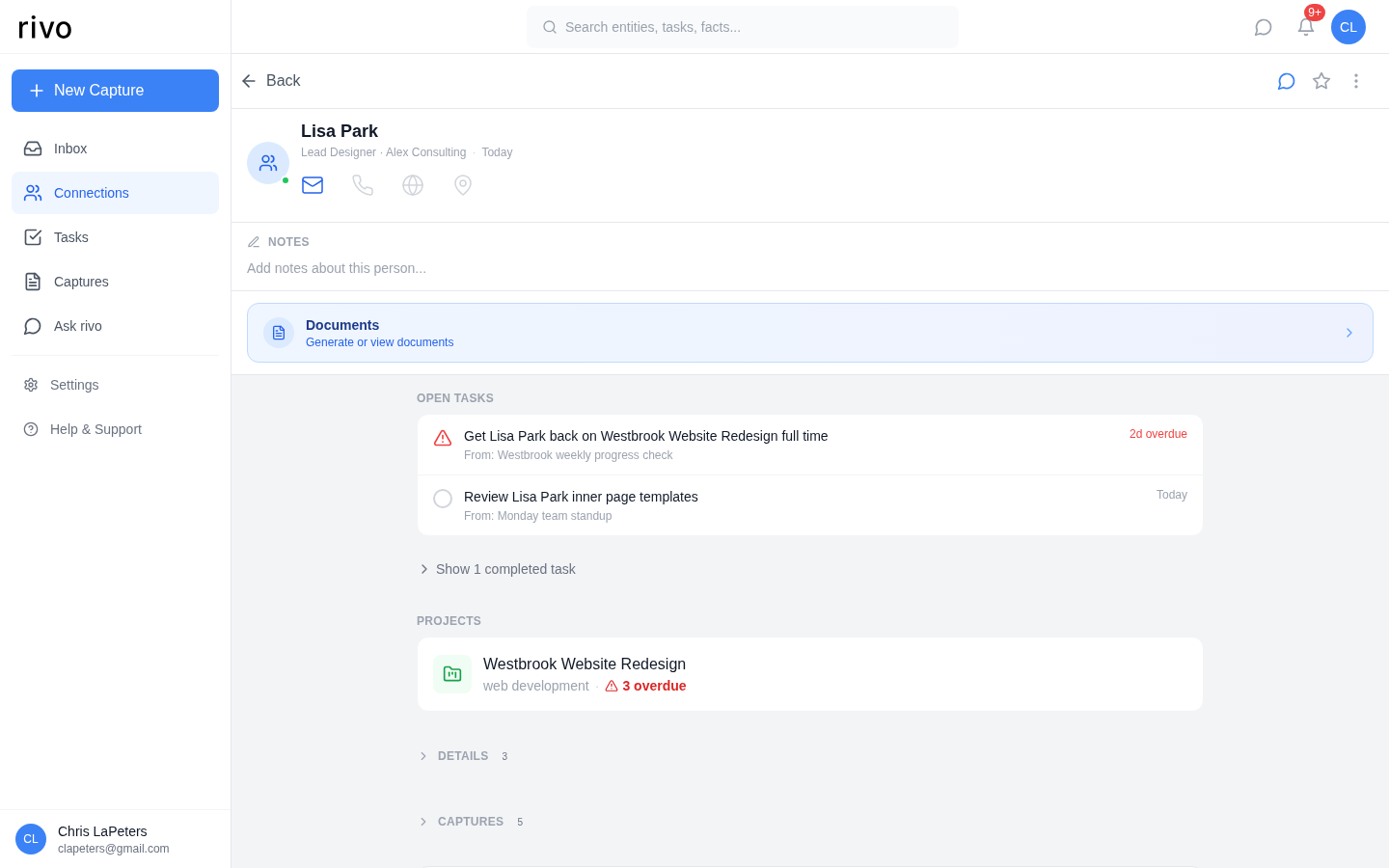
Tap any connection to open its detail page. This is the single source of truth for everything rivo knows about that person, company, or project.
What you'll find on each detail page
Header & contact info
Name, role/title, company affiliation, and quick-action icons for email, phone, web, and location.
Notes
Your personal notes about this connection. Free-form text that auto-saves when you click away.
Documents
Generate summary documents, status reports, or briefing docs from all the data rivo has collected.
Open Tasks
All tasks linked to this connection, with due dates and overdue warnings. Tap to view or complete.
Projects
Related projects with their subtype and task status at a glance.
Details (Facts)
Extracted data points — budgets, dates, preferences, decisions — automatically pulled from your captures.
Captures
Every capture that mentions this connection, in reverse chronological order.
Relationships
Other connections linked to this one — their company, related projects, contacts they work with.
Pro tip: Use the chat icon (top-right) to start a conversation about this connection. Ask rivo questions like "What's the latest on Lisa's deliverables?" or "Summarize my history with this person" and get answers drawn from all your captures.
Using Views
Views are saved filter combinations that let you instantly switch between different slices of your connections. Think of them as smart folders.
Default Views
rivo starts you with five built-in views:
- All Connections — Everything, unfiltered.
- Favorites — Only connections you've starred.
- Recently Active — Connections with recent captures or task activity.
- Needs Attention — Connections with overdue tasks or declining sentiment.
- Archived — Connections you've moved out of your active list.
Creating custom Views
You can create your own views to match how you think about your work. For example:
"Active Clients"
Type: People + Companies
Filter: Not archived, has recent captures
"Job Sites"
Type: Properties
Filter: Context mode = bounded (active jobs)
"Key Vendors"
Type: Companies
Filter: Favorited, subtype = vendor
Views persist across sessions. Once you create a view, it's saved to your account. Switch between views from the "Views" dropdown on the Connections page.
Favorites & archiving
Starring favorites
Tap the star icon on any connection (in the list or on the detail page) to mark it as a favorite. Favorites sort to the top of your list and appear in the "Favorites" view.
When to favorite: Star the connections you interact with most — your top clients, active projects, key team members. This keeps them within easy reach without cluttering your filters.
Archiving connections
When a project wraps up or a relationship goes dormant, archive the connection instead of deleting it. Archived connections:
- Disappear from your active list — they won't clutter your day-to-day view.
- Keep all their data — captures, facts, tasks, and history are fully preserved.
- Can be restored anytime — just find them in the "Archived" view and unarchive.
Archive, don't delete. Archived connections still appear when mentioned in new captures, so rivo can keep linking data correctly. If you create a new capture mentioning an archived connection, it will resurface naturally.
Pro tips
Use full names in captures. When you write "Met with Jennifer Westbrook from Westbrook Industries," rivo can confidently link to the right person and company. Abbreviations like "Jen W." work less reliably.
Let details accumulate naturally. You don't need to fill in contact info manually. As you capture meetings, calls, and emails, rivo builds up a rich profile for each connection — role, company, preferences, project involvement — all automatically.
Check the Inbox for declining relationships. rivo tracks sentiment over time. If a client's tone has been shifting negative across recent captures, you'll see a sentiment alert in your Inbox — a signal to reach out proactively.
Connect Google Contacts for richer profiles. In Settings, link your Google account to automatically enrich connections with profile photos, email addresses, and phone numbers from your contact list.